Free automated testing tool for web scraping, selenium automation, and data parsing — with 650+ configs
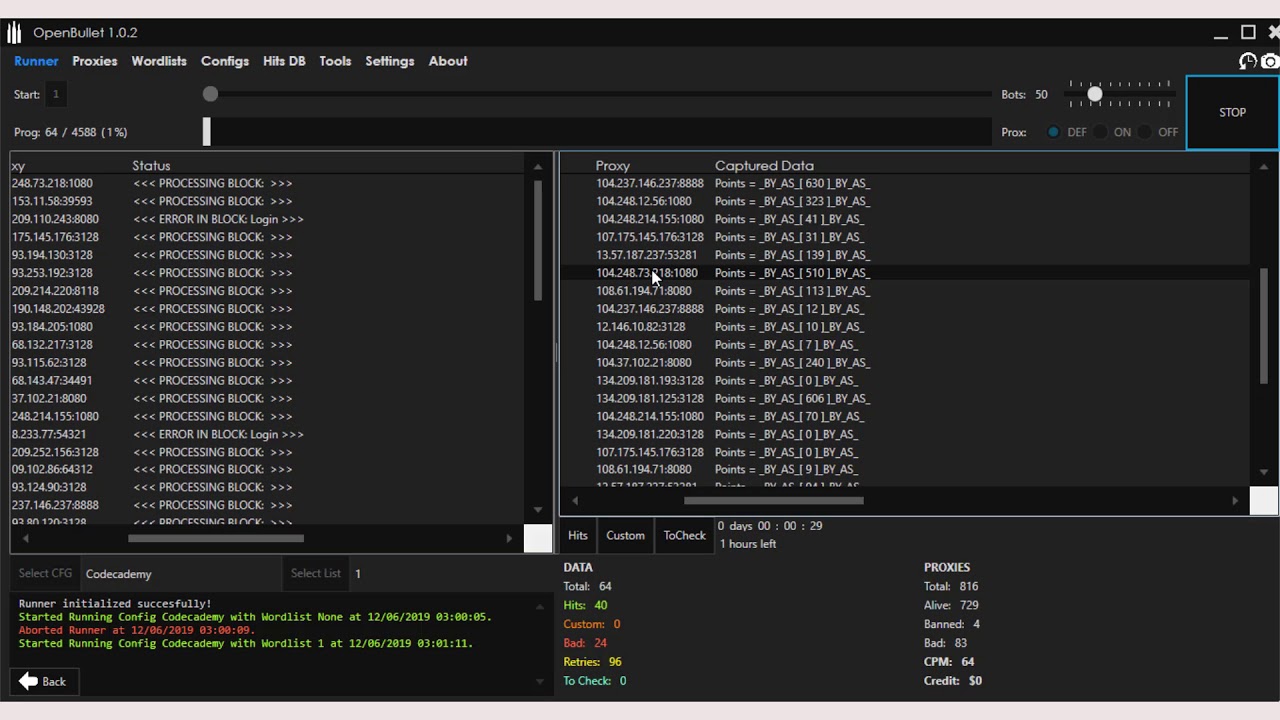
OpenBullet Anomaly is a powerful automated testing tool and web scraping suite that allows you to perform requests towards a target webapp and offers a lot of tools to work with the results. This software can be used for scraping and parsing data, automated pentesting, unit testing through selenium automation and much more. Download OpenBullet and SilverBullet configs for free from our store.
Powerful features designed for professionals
High-performance testing with optimized threading and proxy support for maximum speed.
Access to a vast library of pre-made configs for popular websites and services.
No ads, no tracking. Your testing activities remain completely private.
Download the latest updated version with 650+ configs included.
Password: openbullet.store
Download .RAR FileComplete cracking course with tools, audio explanation, video and text tutorials.
Advanced course for OpenBullet Anomaly & OpenBullet 2 [2026] with comprehensive materials.
IMPORTANT! Performing (D)DoS attacks or credential stuffing on sites you do not own (or you do not have permission to test) is illegal! The developer or this website will not be held responsible for improper use of this software.
OpenBullet configs is the result of numerous hours of passionated work from a small team of computer security enthusiasts. If you appreciated our work and you want to see OpenBullet configs kept being developed, please consider making a donation to our efforts via Bitcoin:
Bitcoin Address:
1CgAkPMgSG5SXvkTQnxU52HE2j8P9643Je
Now that you have enabled the automator, go ahead and write your first script. Your phone will thank you for the break from repetitive taps. Learn to enable automator mode via ADB on Android. Step-by-step guide to permissions, shell commands, input taps, and writing automation scripts for testing and productivity.
adb shell settings put secure enabled_accessibility_services com.github.uiautomator/.UiAutomatorService adb shell settings put secure accessibility_enabled 1 Run this to see if it worked:
To enable a full automator (like automator or Appium ), you must grant these permissions via ADB: adb enable automator
echo "Tapping the center of the screen to focus video..." adb shell input tap 540 1300 # Adjust coordinates based on your screen resolution
You have to know the exact service name. Use this ADB command to find all accessibility services installed: Now that you have enabled the automator, go
Enter the concept of
#!/bin/bash adb shell screenrecord /sdcard/bug_replay.mp4 --time-limit 10 & Clear previous logs adb logcat -c Perform automated actions adb shell input swipe 300 1000 300 300 # Swipe down sleep 2 adb shell input tap 540 500 # Tap a button sleep 1 adb shell input keyevent KEYCODE_BACK Stop recording and pull files sleep 12 adb pull /sdcard/bug_replay.mp4 adb logcat -d > bug_logs.txt Step-by-step guide to permissions
echo "Launching Instagram..." adb shell am start -n $PACKAGE/$ACTIVITY